Manage Participants
This feature documents the Team Learning participants management view for a batch:
/growthkit/configurations/:configurationId/batches/:batchId/participants
The page is used to add/edit learners, manage invitations, import participants, and maintain HR managers connected to the batch customer.
Access and visibility
- Authentication is required.
- Access is restricted to Team Learning/Team Sales routing context, but the page content itself is rendered for Team Learning users.
- If user is not Team Learning, access is denied in-page.
Source: platform/pages/growthkit/configurations/[configurationId]/batches/[batchId]/participants.tsx
View preview
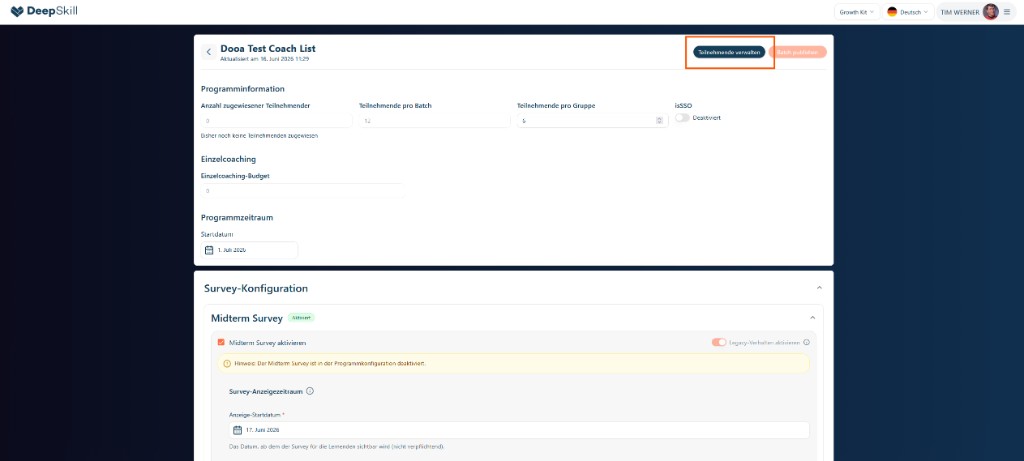
Header actions
| Action | Behavior |
|---|---|
| Back | Returns to the batch editor route. |
| Batch/program title line | Shows customer, program title, and batch date. |
| Invite all | Enabled only when batch is published; invites all not-invited participants. |
| Batch not confirmed warning | Displayed while batch is not published. |
Participant management section
The participant table supports:
- Add participant (opens participant modal)
- Edit participant
- Invite single participant (only when batch is published)
- Invite all (header action)
- Target-group assignment per participant
- Bulk target-group assignment
- Excel import (
ExcelImportModal) with duplicate-email handling against existing participants
Primary fields shown include first/last name, email, group, individual coaching budget, invitation status, timezone, onboarding status, and row actions.
HR manager section
A dedicated HR manager block allows:
- Add HR manager for the customer
- Invite individual HR manager (invite button per row)
- Viewing invitation status
Invite actions are also gated by batch publication state.
Invitation and publish gating
Invitation behavior is intentionally locked until batch publish:
- Participant
InviteandInvite allare disabled when!batch.publishedAt. - HR manager invite is disabled when
!batch.publishedAt. - Attempting invite before publish surfaces an error state in UI logic.
Connected flow context
- Entry from batch editor action button: Create/Edit Batch
- Journey step: Create/Edit Batch (Team Learning journey)